
How to publish a living book: from manuscript to sale page
Publish a living book step by step: details, manuscript, cover, price, chapters, then the link and QR code that bring readers to its sale page.
On this page
- What you need before you start
- Step 1: create the book and its details
- Step 2: upload the manuscript
- Step 3: add the cover and the colours
- Step 4: set the price, or make it free
- Step 5: bring in the chapters
- Publish the chapters
- Step 6: publish the book
- After publishing: the link, the QR code and your readers
A living book is a book your readers open on the web: chapters with audio, video and pictures, and a sale page of its own that sells it directly to readers. This guide follows one book from a manuscript on your computer to a published page with its own link and QR code. Every step happens in the X-Live CMS, and you can stop at any point: the book stays a draft until you press Publish.
What you need before you start
You need three things, and only the first is required to begin:
- Your manuscript, as a DOCX or a PDF. In a DOCX, give each chapter title Word's Heading 1 style, so the chapters are found automatically later.
- A cover: one image for the front, or two for front and back (PNG, JPG or WEBP).
- A price, or the decision to give the book away for free.
What readers get once it is live is described on the reading experience page.
Step 1: create the book and its details
On the Dashboard (or on Books) press New book. In Manuscript & details fill in the title, the subtitle, the pen name (the author name readers see, which can differ from your account name) and the category. The description is optional, but it is what appears under the title when the book is shared, so it is worth a few careful sentences.
Step 2: upload the manuscript
Under Manuscript (optional) press Upload manuscript and choose your file. Press Continue, or Save as draft to finish later. Nothing is public yet.
Step 3: add the cover and the colours
In Cover & appearance drop your cover on Covers, or click to choose it. Below it, choose the colours readers will see on the book's pages. Press Continue.
Step 4: set the price, or make it free
In Pricing & rights tick This book is free, or enter a price and its currency: prices for the other currencies are suggested from today's exchange rate. Tick the two declarations at the bottom (your right to publish, and the content policy) and press Continue.
Readers pay you directly, on your own Stripe account. How selling inside the chapters and share links tagged by channel work is on the offers and sales page; what each plan includes is on the pricing page. Try your own numbers here:
Step 5: bring in the chapters
The book is saved as a draft. Press Work on chapters now to open its page. There, Import Manuscript with AI shows your manuscript: press Detect chapters, check the list it finds, then press Apply structure to book to create them. You can also add content by hand under Content.
Publish the chapters
New chapters arrive as drafts, and readers only ever see published ones. Under Content tick Select all, open Change status and choose Set to Published. Open any chapter first if you want to edit it, add an audio reading, a video or a picture.
Step 6: publish the book
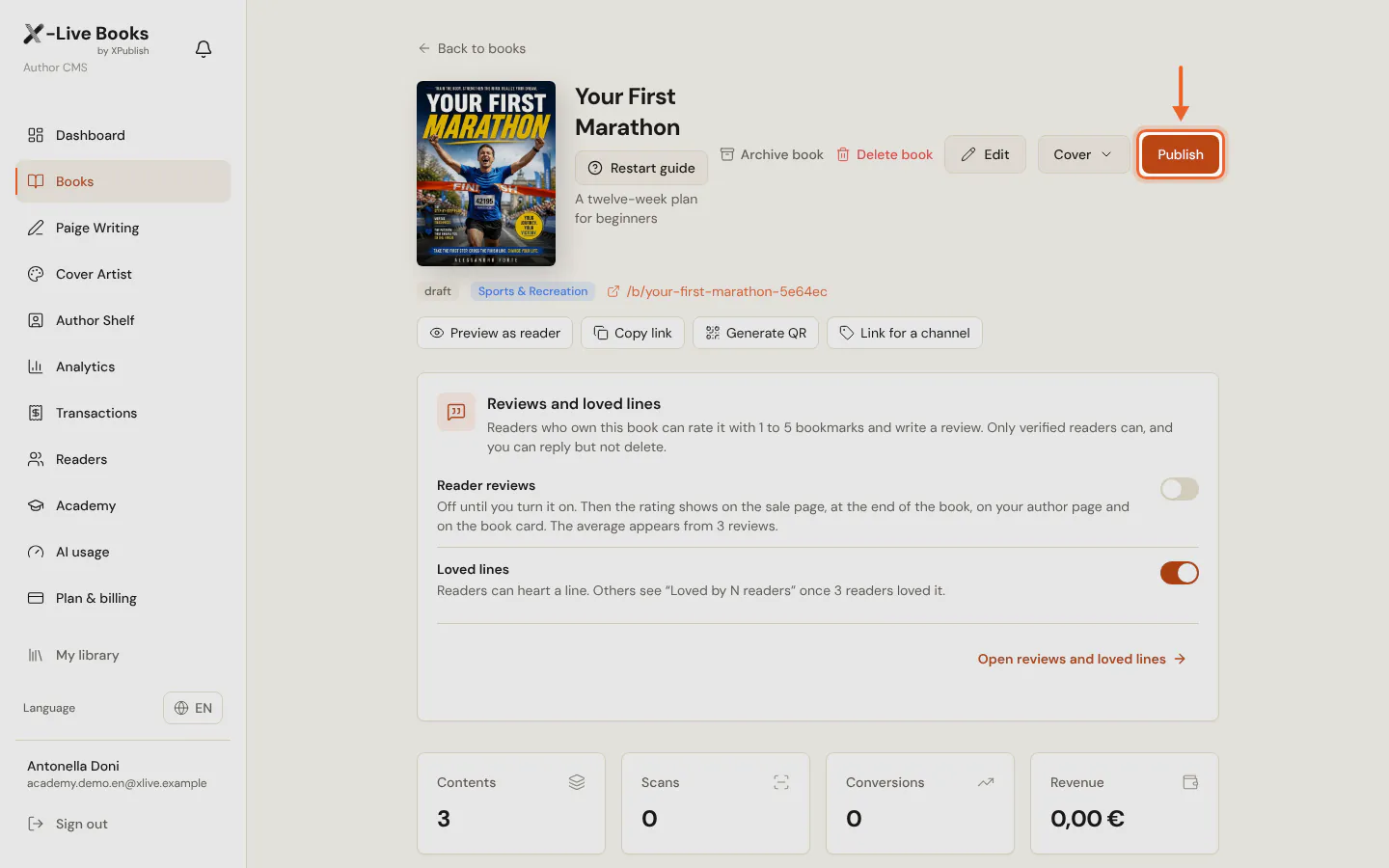
Press Publish at the top of the book's page. If something is still missing, X-Live lists it with a link to fix it. If the imported chapters have not been edited yet, it asks first; Publish anyway goes ahead.
This is what a reader sees when they open a chapter of a published living book:
After publishing: the link, the QR code and your readers
Copy link copies the book's address. Generate QR opens its QR code, and Download QR saves it to print in the paper edition, where it opens the living version. Once printed, a QR code cannot change, so it always points to this book; the QR code page explains where to place it. Readers who open the link on a phone land on the book's sale page.
From there, three things keep the book working for you:
- your author page gathers your books, your bio and your links in one place;
- reader analytics show where your readers are and which channel sold the book;
- news and reader emails let you tell readers about updates and new books, and share cards and reviews let them tell others.
A living book is never finished: correct a chapter or add a video, and readers see it the next time they open the book.
The features in this guide
Each one has its own page with the details.
- Reading experienceNo app and no account to start reading. The chapter opens on the phone with your voice, your video and your offer.
- The QR and the 5 stepsAdd video and audio to your printed book with nothing to reprint and nothing to install. Your readers already know how to scan a QR code.
- Offers and salesSell your book directly to readers: every book gets its own sale page, with the 3D cover, the chapters and free samples.
- Author pageYour photo, your bio, your links and all your books on one public author page that readers can find and share.
- AnalyticsEvery chapter reports back. Pick a group of readers and write to exactly them.
- News and reader emailsCorrect a word, swap an example, add a chapter. The next reader opens the new version.
- Share cards and reviewsYour readers become your marketing.
- PricingYou keep 100% of every sale.